Swapping a Dead Drive and Landing in Emergency Mode
| Date | 11/17/2026 |
| Tags | Ubuntu Homelab |
A five minute job
My home server, buffalo, is an old Ryzen desktop running Ubuntu 26.04. It runs my dashboard, Jellyfin, a budgeting app and a handful of other containers. For a few weeks one of its drives (an old 320 GB WD laptop drive) had been failing its SMART checks with over 500 reallocated sectors. I'd stopped using it and told my dashboard to ignore it until I got around to pulling it.
So I finally got around to it. Shut down from the GNOME menu, swapped the dead drive for a 1 TB drive I had lying around, booted it back up. Five minutes, tops.
It did not boot.
Problem
The first boot threw an error about not being able to find a file (which I of course didn't write down) and then dropped into memtest86. The second try got further and stopped here:
You are in emergency mode. After logging in, type "journalctl -xb" to view
system logs, "systemctl reboot" to reboot, or "exit" to continue bootup.
Press Enter for maintenance
(or press Control-D to continue):
My first thought was that I'd bumped a cable, or that the BIOS was now trying to boot from the new drive. Emergency mode right after touching drives usually means /etc/fstab is pointing at a disk that isn't there anymore. So I hit Enter, got a root shell, and went to check it:
# cat /etc/fstab
cat: /etc/fstab: No such file or directory
# lsblk -f
sh: lsblk: not found
That was a fun moment. No fstab and no lsblk.
It turns out this wasn't the emergency mode I was used to. Newer Ubuntu releases boot from a small temporary system first (the initramfs), find the real root disk, mount it, and then hand off. If mounting root fails, you get an emergency shell inside that tiny temporary system. Your real files aren't mounted, so there's no fstab, and most of the usual tools aren't there either. The tools that are there still answer the important question, which is whether the disk can be seen at all:
cat /proc/partitions   # every disk and partition the kernel can see
blkid                  # their labels and UUIDs
cat /proc/cmdline      # which UUID the bootloader told it to mount as root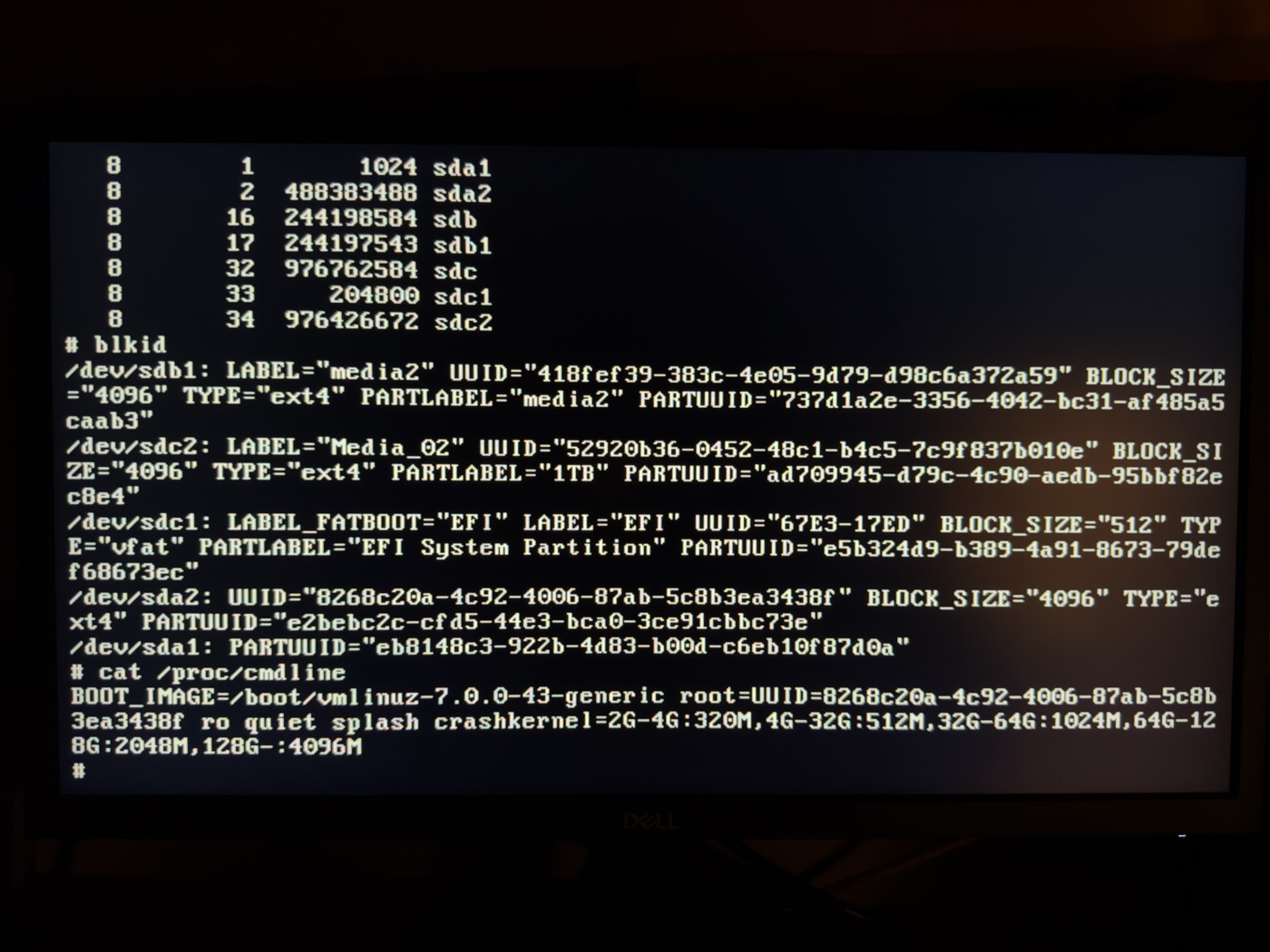
Phone photo of a monitor, the finest form of documentation.
This was actually good news. The system disk was there (sda2), and its UUID matched the one in /proc/cmdline exactly. So the cables were fine, the boot order was fine, and the new drive was just sitting there as sdc, not bothering anyone. The disk was there. It just wouldn't mount.
On a whim I tried mounting it by hand:
# mount /dev/sda2 /sysroot
# exit
And it booted. All the containers came back up. I was ready to call it a fluke and move on. Then I checked the journal for the boot that had failed:
systemd-fsck: /dev/sda2 contains a file system with errors, check forced.
systemd-fsck: /dev/sda2: Directory inode 15478358, block #0, offset 0: directory corrupted
systemd-fsck: /dev/sda2: UNEXPECTED INCONSISTENCY; RUN fsck MANUALLY.
systemd-fsck:         (i.e., without -a or -p options)
systemd-fsck: fsck failed with exit status 4.
There's the real problem. The drive swap had nothing to do with it. At some point, probably an earlier crash or a hard power off, the root file system picked up a corrupted directory. The automatic check at boot found it, decided it wasn't safe to fix on its own, and stopped the boot. Mounting it by hand just walked right past the warning. The corruption was still there, and now the server was running on top of it.
Solution
Before repairing anything I wanted to know whether the disk itself was dying, because if it was, the repair wouldn't last. smartmontools wasn't installed on the host, but my dashboard runs a small container that collects SMART data every day, so I borrowed that:
docker exec hub-smart-1 smartctl -H -A /dev/sdaThe health check passed, with 1 reallocated sector, 0 pending and 0 uncorrectable. For an old 2.5" laptop drive that's honestly pretty good. So the problem was the file system, not the hardware.
The fix is the thing the error message tells you to do. You just have to do it while the disk isn't mounted. Since the disk was still flagged as dirty, rebooting put me right back at the same emergency prompt, which is exactly where I wanted to be:
# fsck.ext4 -fy /dev/sda2
# reboot
-f forces a full check and -y answers yes to every repair. Run it again until it comes back clean. On the next boot the automatic check reported /dev/sda2: clean, and it booted the way it was supposed to.
Two more things that bit me
My second media drive didn't mount. Its fstab line had nofail,x-systemd.device-timeout=10s. nofail did its job and let the server boot without it, but on a busy boot the drive showed up a few seconds after the 10 second window, so it got skipped. I bumped it to 90 seconds. Any containers that started while it was missing (Jellyfin, node-exporter) needed a restart before they could see it.
Everything was crawling. After the repair the system disk was busy about 80% of the time and every container was stuck waiting on it. The culprit was GNOME's file indexer, localsearch-3, which decided this was a great time to read about 37 GB off a slow laptop drive. A server doesn't need desktop search, so:
systemctl --user mask --now localsearch-3.service localsearch-control-3.serviceDisk wait went from 80% to under 1% in about a minute.
Takeaways
- If /etc/fstab is missing in emergency mode, you're in the initramfs and root never mounted. Use /proc/partitions, blkid and /proc/cmdline to find out why.
- Read journalctl -b -p err before you guess. I was sure it was a cable.
- Mounting root by hand gets you booted, but it skips the check that stopped you. Go back and run the fsck.
- Look at drives by serial (/dev/disk/by-id/) before pulling or formatting one. The sdX letters can change between boots.
- Give slow drives a generous fstab timeout, and keep nofail on anything that isn't needed to boot.
The new 1 TB drive is now set up as a third media drive, so the five minute job did eventually get done. It just took most of an afternoon.